| CIS 207 | Web Page Development - HTML |

Webster's defines multimedia as "using, involving, or encompassing several media." In the early 1990s, PC owners transformed their standard IBM compatible computers into multimedia computers by adding a multimedia kit - which included a sound card, speakers and a CD-ROM. The new computer would be able to combine text, graphics and sounds to engage in a full multimedia presentation.
Bandwidth is a measure of the amount of data that can be sent through a communications circuit each second. In essence, bandwidth is the size of your pipeline to the Internet. Sizes range from a dial-up connection using a modem and a telephone line, typically a 56K modem today, to high speed direct connections which can transfer data at several megabytes per second.
You can visit http://www.toast.net/performance to see what kind of speeds you're getting from your connection.
Multimedia can consume lots of bandwidth. The goal when using multimedia is to create clips that are compact in size without sacrificing quality.
We can add multimedia to a web page in one of two ways:
However, inline media forces the user to wait for the file to be retrieved by the browser before it begins.
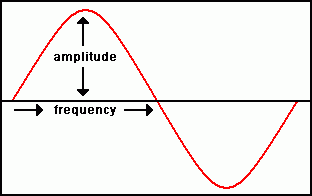
There are two components to a sound wave:
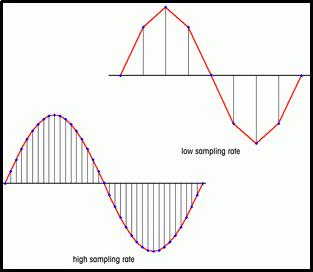
A sound wave is a continuous function. To convert it from analog to digital so that it can be stored in a sound file on a computer, we take samples.
 There
are three basic decisions regarding sound quality:
There
are three basic decisions regarding sound quality:
1. The number of samples taken per second is called the sampling rate, which is measured in kilohertz (KHz). The higher the sampling rate, the better the sound, BUT, the size of the file increases.
2. Sampling resolution indicates the precision in measuring the sound within each sample. There are two sample resolution values, 8-bit and 16-bit. The 16-bit file will be twice the size of an 8-bit file. The increased sound quality is worth the difference.
3. Number of channels - basically mono or stereo. Stereo will double the size of the file.
For example, the following sampling rates and sample resolutions will give you an idea of the sound quality you may be familiar with. These are based on the Windows Sound Recorder settings for telephone, radio & CD.
| Sampling Rate and Sample Resolution | Sound Quality |
| 11 KHz, 8-bit, mono | Telephone |
| 22 KHz, 8-bit, mono | Radio |
| 44 KHz, 16-bit, stereo | CD |
To create a sound file, use the sound recorder on your computer. You may want to use sound-editing software to modify the sampling rate, sample resolution, and number of channels. In addition, sound-editing software will allow you to add sound effects, remove noise, and copy and paste sounds between files.
You may want to check out these sound-editing software links:
There are a number of different sound formats on the Web. Sound compression is the ability to reduce the size of the sound file. Here is a list of some of the common sound formats on the Web.
| Format | Description |
| AIFF/AIFC | Audio Interchange File Format - developed by Apple for use on the Mac. |
| AU | Also called "mu-law" - primarily used on UNIX workstations. |
| MIDI | Musical Digital Interface - limited to synthesizers and music files. The MIDI format represents sounds by recording each note's pitch, length, and volume. File sizes are much smaller! |
| MPEG | Moving Pictures Expert Group - used for video clips and sounds. The most recent MPEG standard is MP3. MPEG files are quite small due to the MPEG file compression algorithm. |
| RealAudio | Designed for real-time playing over the Internet. Uses streaming media technology which allows it to start playing while it is downloading. Web surfers download Real Player to view. |
| SND | Used primarily on the Mac for creating system sounds. Not widely supported on the Web. |
| WAV | Developed for the Windows OS and is one of the most common formats on the Web. |
WAV files are the most commonly used formats on the Web since most people use the Windows operating system. Windows has built in support for WAV files via the Sound Recorder. In Windows, click START, PROGRAMS, ACCESSORIES, ENTERTAINMENT, SOUND RECORDER to record a sound.
|
For larger sound files, such as complete songs, MPEG is the preferred sound format because of its ability to greatly compress the size of the file. The latest version of the MPEG format is MP3. A typical song on a CD will be a huge 30 MB file. The same song stored in MP3 format will be a 3 or 4 MB file, with very little difference detected by the human ear. Instead of a CD being able to hold a maximum of about 20 songs, if stored in MP3 format a CD can hold as many as 150 or 200 songs! There are a number of sites that allow users to exchange MP3 files. Although Napster is now history, there are a number of others that are taking their place. Google reported the sites on the left as the top ten MP3 sites in late 2001. |
The MIDI format is a standard adopted for synthesizers and sound cards. The MIDI format reduces the sound to a series of values that describe the pitch, length and volume of each note. MIDI files are tiny, compared to other sound files. A MIDI composition that lasts several minutes could be less than 20KB in size. The same WAV file would be several megabytes. However, MIDI files are limited to music and can not be used to record speech.
If you don't want to record your own sound files, you can check out the following links which have sounds you can download. Some clips have copyright restrictions. WARNING: Watch for PopUps!
Keep in mind the size of your sound files. Sound files can get very large, very quickly. Just by picking a higher sampling rate, your sound file can go from a small 100KB file to a file that is 2 or 3MBs in size. You do not want to place sound files on your web page that takes forever to download.
It is polite to provide visitors with file size information in your link to external sound files. To link to a sound file, we will use the <A HREF> tag that we use to link to other web pages. For example, the following code:
<a href="198thunder.wav">Sound of Thunder (43K - WAV file)</a><br>

<a href="198error.wav">WS_FTP's Error Sound (10K - WAV file)</a><br>

<a href="198notify.wav">Outlook's Mail Notification Sound (117K - WAV file)</a><br>

<a href="198ohno.wav">Oh No Sound (73K - WAV file)</a><br>
will create the following four links:
Sound of Thunder (43K - WAV file)When the browser encounters a link to an external file, like these sound files, it checks to see if there is any program installed on your system designed to handle it. These programs are called helper applications since they help the browser display the file.
A sound clip placed directly on a web page is one example of an embedded object. An embedded object is any media clip, file, program or other object that can be run or viewed from within a web page. To use embedded objects, the browser must support them and it must have access to software called plug-ins. Plug-ins, also called add-ons, are programs that enable the browser to work with an embedded object. A plug-in will appear as part of the web page.
The syntax to embed a sound or video file into a web page is:
<EMBED SRC=URL WIDTH=value HEIGHT=value AUTOSTART="startvalue">
where URL is the URL of filename of the embedded object, the HEIGHT and WIDTH
properties define the size of the embedded object. The AUTOSTART property
determines whether or not the browser automatically starts the clip when the
page loads. Use AUTOSTART="true" to start the clip automatically, and
AUTOSTART="false" to let the user start the clip.
Click HERE to see a page with an embedded video file that starts automatically.
Click HERE to see a page with an embedded sound file that starts automatically.
You can get creative and combine tiny MIDI files with animated GIFs to create an effect on a web page without overloading your visitors with HUGE downloads. Here are some examples:
The following code:
<embed src="198twoofakind.mid" height="50" width="300" autostart="false">
will create the following controls on the page, and let the user start the sound by clicking the play button
This is a MIDI file - only 21KB!
Internet Explorer (version 3) introduced a tag for playing background sounds on your web page. The syntax for the <BGSOUND> tag is:
<BGSOUND SRC=URL LOOP=value>
where URL is the URL of the sound file, and the LOOP defines how many times
the sound clip will play. The LOOP value can be an integer (1, 2, 3, ... etc.) or it can
be the word INFINITE to make the sound play continuously. However, you want to
be considerate to your visitors - and not make them listen to a sound over and
over, or they may leave your web site to stop the sound.
Although Netscape did not initially support this new tag, we can accomplish the same thing with the following code:
<EMBED SRC="" WIDTH=0 HEIGHT=0 AUTOSTART="true">
If other browsers (such as Opera and Netscape) do not support the BGSOUND tag, it would be a better choice to use the above EMBED tag, since this will work in ALL browsers that support the EMBED tag.
HERE is a sample web page with a background sound using the BGSOUND tag.
Video files can provide lots of information, but, video files can be VERY large. Be sure to think about your audience and what type of Internet connection will they be using.
For example, back in 1996, someone sent me an email with a video joke attached. You may have seen the video where this office worker gets frustrated with the computer and starts picking up the monitor and throwing it down on the desk. It was a really funny video, but it was a HUGE file - maybe it was about 2 Megs! At the time, I connected to the Internet with a notebook computer, which only had a 14.4 modem. I had to wait OVER AN HOUR to download my email! The person sending the email was connected to the Internet with a T3 from UAB. They didn't realize how big the file was and how long it would take to download it on a modem.
You can create video files with a video capture card installed on your computer to record images from a TV or VCR. You can also create video clips using computer animation software.
A video file is composed of individual frames that, when shown in sequence, give the illusion of motion. They're similar to drawing stick people in a book, placing each move on a different page, so that when you thumb through the book, it looks like the stick people are moving. The quality of a video is measured in the number of frames it shows per second. A VCR renders video at the speed of 30 fps. Computer files with the same number of frames per second are QUITE large.
Here are some ways to reduce the size of a video file:
Video editing software will provide these options to help reduce the file size.
Check out techcrunch.com for recent video format trends. This article (May 1, 2010) points out that Web sites are moving to the more modern H.264 format. Flash has dropped from a 69% share in the second quarter of 2009 to 26% in the first quarter of 2010. H.264, on the other hand, has grown from 31 percent to 66 in the same time period. H.264 is now the largest format by far. The H.264 format means visitors can view content from iPods, iPhones and iPads, as well as traditional browsers. Microsoft said that Internet Exploer 9 would only support the H.264 codec for HTML video.
Audacity - free, cross-platform audio recorder, useful for creating MP3 audio files.
Screenjelly - Free desktop recording with audio. Runs in browser, nothing to download.
Jing - Free screen capture and screencasting. For Windows and Mac.
SMIL at http://www.w3.org/AudioVideo