| CIS 146 | Microcomputer Applications |

Microsoft Access XP (aka: Microsoft Access 2002)
Let’s talk for a minute about the hierarchy of data, and define some very important database terms.
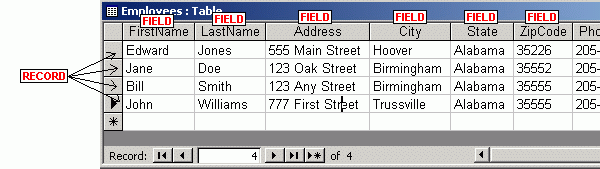
Field – is first as we move up the hierarchy. A field is a characteristic about an object, person, place or event. A field is a category of information. A field is represented in Access by a column.
Record – is second as we move up the hierarchy. A record is a group of fields. A record is specific information about an object, person, place or event. A record is represented in Access by a row.
Table – is next as we move up the hierarchy. A table is a group of related records. A table is represented in Access by a matrix. A table contains records (represented as rows) and fields (represented as columns).
Database – is next as we move up the hierarchy. A database is a group of tables. In Access, each file is a database. An Access database file contains all the tables for that database. Access database files use the .mdb extension (stands for Microsoft DataBase).
Ready for a pop quiz?
Let’s test your understanding of these terms. Let’s assume we are creating a new table to store information about employees that work for a particular company.
QUESTION #1: What are examples of fields we might use for this table?
ANSWER: employee name, first name, middle name, last name, address, city, state, zip code, phone number, emergency contact, pay rate, date hired, number of withholding exemptions/dependants, full time/part time, etc.
QUESTION #2: What would be considered a record in the employee table?
ANSWER: employee
Looking at the table above, note each of the following:
QUESTION #3: Would a customer be considered a FIELD or a RECORD?
ANSWER: In most cases, a customer would be considered a RECORD. However, this assumes that we’re talking about a customer table that has customers and all the information (fields: customer name, customer address, etc.) about each customer.
HOWEVER: It is possible (not likely) for a customer to be a FIELD. Customer would be considered a field if we’re talking about a salesmen table where each sales person only had one customer and CUSTOMER was a field in the SALESMEN table. Most sales people will have lots of accounts and therefore it would be unlikely for customer to be considered a field.
QUESTION #4: Would an ACCOUNT NUMBER be considered a FIELD or RECORD?
ANSWER: FIELD in an Account table. Each customer would be a record.
QUESTION #5: Would an INVOICE AMOUNT be considered a FIELD or RECORD?
ANSWER: FIELD in an Invoice table. Each invoice would be a record.
Define the structure of a table: Before we can enter data into a table, we must define the structure of the table. Defining the structure of the table simply means that we will tell Access what fields we want for the table, and give each field a name and a data type.
There are two basic views of a TABLE in Access:
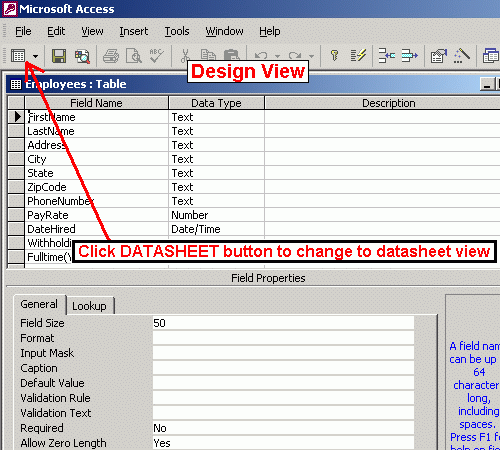
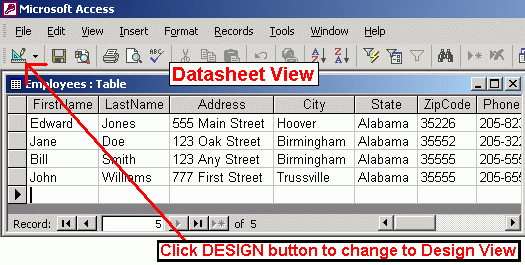
NOTE: The red arrows point to the button used to change views. When you are in DESIGN VIEW, you'll see the DATASHEET button. When you are in DATASHEET VIEW, you'll see the DESIGN BUTTON.
Example: First, we will create the structure of our new table. We'll name our database file CLASS since it will hold the "ComputerClass" table with the names and telephone numbers for people in our class. Then, after we've defined the structure of the table, we will go around the class and everyone can state their name and telephone number. As each person states their name and number, we will all enter the values for each person. Each person is considered a record in our ComputerClass table. We will only have two fields; one for name and another for phone.
This example is very simplified, with only two fields. Normally, we would have a field for first name, another for last name, etc.
Also, if you do not want to give out your real phone number, feel free to make up a number. You can use the 991 exchange since it is a local exchange near the school. This will allow you to participate in our example, without giving out your real phone number to the class.
First, we will START ACCESS. Then, we'll create a NEW BLANK DATABASE on A:\
DRIVE 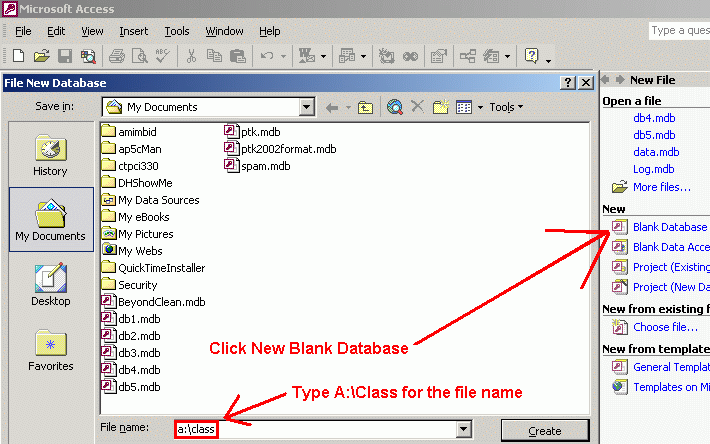
VERY IMPORTANT POINT: Access is not like the other programs you've used before when it comes to saving files. We tell Access the name and location (drive and folder) of the file we want to create - JUST ONCE, WHEN WE BEGIN. Access handles the rest. We can NOT do a SAVE AS to save the database file to another drive or folder as we can in Word and Excel. The important thing to keep in mind is to COMPLETELY EXIT ACCESS when you are finished, and WAIT UNTIL THE DISK LIGHT GOES OFF before you remove your diskette. Access will save all your work for you.
TO RENAME AN ACCESS FILE: Since Access does not have a SAVE AS command like Word or Excel, if you want to rename a file, you will need to exit Access and rename the file using the Windows Explorer. Then, you can reopen your newly named file with Access. All homework assignment files that you turn in will have to be RENAMED AFTER you have finished each section. You will be turning in the same file, several times, once after each project. Keep in mind that all the tables, queries, forms and reports are all stored in ONE ACCESS FILE.
BIG FILES: Access files can be quite large! Access has the ability to store up to ONE BILLION records, and as a result, in order to keep up with all these records in an efficient manner, Access will be in charge of saving files. Even files with just a few tables may be 250K in size! Just a few, small Access files can fill up a diskette! Access files CAN BE larger than 1.44MBs - and of course files that are this large will not fit on a floppy diskette at all. You'll probably want to use your 2nd floppy disk - a totally blank diskette - for just your Access files.
TEMPORARY FILES: Access will create a temporary file the same size as the regular file every time it opens a database. This means that if you open a 500K file, you must have an ADDITIONAL 500K available on the disk, or you will get errors. When Access encounters a disk full error, it will not necessarily give you a disk full error. Often, it will say it is having trouble writing to the drive, or even just say "data error". If you see an odd error like this, check the available space on your floppy diskette by double-clicking My Computer, then right-click your 31/2 floppy and click properties.
Now we will create the table. We'll name the table "ComputerClass", but in
Access, we will not type the name until we're finished designing the structure
of the table. First, click TABLES in the objects area on the left side of the
Access database window. We'll learn about Queries, Forms and Reports later.
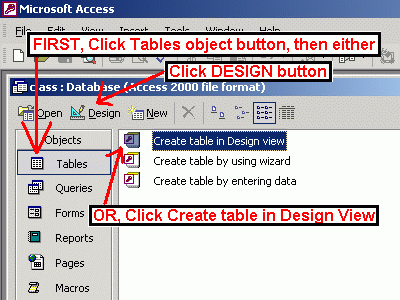
Then, we can click the DESIGN button or double-click CREATE TABLE IN DESIGN VIEW to go to the DESIGN VIEW.
Now we are ready to DEFINE THE STRUCTURE of our new TABLE, which we'll name
ComputerClass.
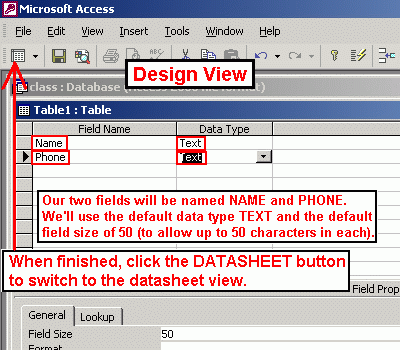
Type the field name - NAME and press the enter key or the tab key three times to accept the default data type and to leave the description column blank. Next, type the field name - PHONE and press the enter key or the tab key three times to accept the default data type and to leave the description column blank.
We're all finished with design view - used to define the fields for our new table. Now, let's click the DATASHEET button to change from DESIGN VIEW to DATASHEET VIEW so that we can enter data.
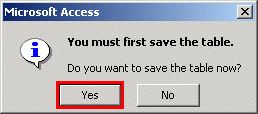
Access will ask us if we want to save the table. Click YES!
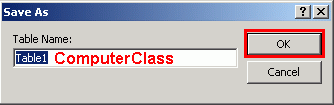
Then, Access will ask us for the name we want to use for our table. For this example, we'll name our new table "ComputerClass". Keep in mind that ALL TABLES are stored in this one file - class.mdb! If we added more tables, the names of the additional tables would appear in our list of tables. They're all stored in this one file - class.mdb! Later, we'll learn about queries. All the queries will also be stored in this one file - class.mdb! Later, we'll learn about forms and reports, which will also be stored in this one file - class.mdb!
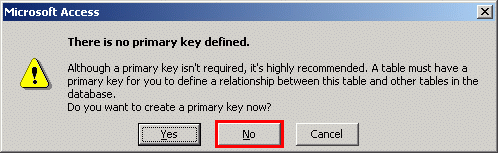
Then, Access will ask if we want Access to create a primary key for us. In our simple example, we will reply by clicking NO. We'll learn about primary keys later.
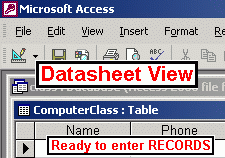
Finally, we will see the DATASHEET view - the place where we will enter new records into the table we just created.
Let's go around the room and everyone state their name. Be sure to speak loudly so that everyone can hear you. And, please spell your name so we'll all get it right. Remember, if you don't want to give out your regular phone number, just make one up!
Once finished, close Access and answer YES if it ask you about saving your work!
WAIT for the disk light to go OFF. It may take a WHILE!
You're welcome to use this assignment as a BONUS ASSIGNMENT to replace any of your other assignments. However, if you use it to replace one of your Access assignments, make sure you replace the LAST ONE because earlier Access assignments will be needed in subsequent ones. For example, you can use it to replace the LAST BEYOND CLEAN assignment #28, but NOT as #25. Assignment #25 will be needed to complete assignment #28.
Just rename your class.mdb file to the name which corresponds to the name of the assignment file you want to replace. For example, if you decide to use this bonus assignment to replace your Excel assignment #23, just name it the first five letters of your last name, followed by your first initial, followed by the number 23. You'll keep the .mdb extension since it is an Access file.