Assignment 01 - RAM
Visit the following link at howstuffworks.com or zdnet and read all about RAM. If you have trouble reaching this link, you can type in the following URL in your browser: http://www.zdnet.com/zdhelp/stories/main/0,5594,2776536,00.html. Try clicking the link first. It should take you to the site. If it still does not work, click the following link or you can type it in the address bar if you prefer: http://computers.cnet.com/hardware/0-1103-8-6220389-1.html. If neither of these links work, click on the following URL or you can type it in the address bar: http://www.yahoo.com or http://www/google.com. Once there, search for the word RAM and find a link that explains all about it. You may want to check out the link http://www.whatis.com to get more information.
Since every computer with Windows 95 or later has WordPad, we will use WordPad to create our first assignment file. To open WordPad, click on START, then type WORDPAD in the search box.
Saving Your File: Click on FILE, SAVE. Be sure you have a USB drive in the USB port in the bottom left corner of the monitor (screen), then find the COMPUTER, then find and click your USB drive. Type the first 5 letters of your last name (all of your last name if it is 5 letters or less). Without any spaces, type your first initial. Without any spaces, type the assignment number for this assignment which is 01. Press the ENTER key on the keyboard to save your file.
Check the title bar to make certain you have saved your file. The title bar
is the blue bar across the top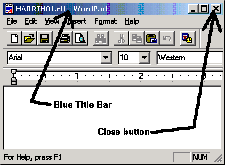 of your WordPad window on the same line as the close button (the little X in the top right corner). If everything worked as
planned, you will see your file name in the title bar. If you see the words
"Document - WordPad" in the title bar, it did not work properly. If it didn't
work, repeat the above steps on Saving Your File.
of your WordPad window on the same line as the close button (the little X in the top right corner). If everything worked as
planned, you will see your file name in the title bar. If you see the words
"Document - WordPad" in the title bar, it did not work properly. If it didn't
work, repeat the above steps on Saving Your File.
Type a paragraph or two that would explain to your friend how much and what
type of RAM he/she should get on a new computer he/she is thinking about buying.
Explain it as if he/she knew nothing about computers. Explain the different types
of RAM, speeds, and be sure to explain how much they need.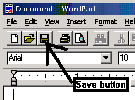
Save Your Work: Click the save button to save your work. Since the power can blink or computers can freeze it is a good idea to click this save button often, as you are working on the assignment. Once you are finished, be sure to click it again so it will save all of your work.
Turning In Your First Assignment Electronically
To turn in your first assignment, you must be at a computer on campus (and computer lab on either campus will work). Close all open windows and click on START, then type \\merlin in the search box, then cick CIS, then click HARRIS.
 (from left to right: MINIMIZE button, RESTORE button, CLOSE button).
  (from
left to right: MINIMIZE button, RESTORE button, CLOSE button).
(from
left to right: MINIMIZE button, RESTORE button, CLOSE button). Notice that two of the three buttons are the same; MINIMIZE button and the CLOSE button. The one in the middle will be a RESTORE button if the window is maximized since that window can be restored. It will be a MAXIMIZE button if the window is in restore position since that window can be maximized.
Make sure your HARRIS window is in RESTORE position. If it is maximized, click the RESTORE button. Restored windows have sizable borders. You can resize restored windows by pointing to the border around the window until the mouse has a two-sided arrow, then drag the window border to a new position. Resize this window so that it is about the size of the left half of your screen.
Move the window to the left side of your screen by pointing to the title bar and dragging it to the left side of your screen. Be sure you are pointing to the blue part of the title bar and not the edge of the window. If you see the two-sided arrow, you are pointing to the edge of the window.
Click on START, COMPUTER, then double-click your USB drive icon. Repeat the above steps so that your window that displays the contents of your USB drive is about the same size and on the right side of your screen. Your screen should look something like this.
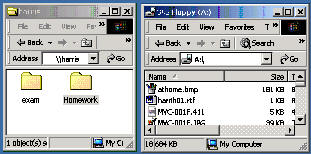
To turn in your assignment electronically, point to your file in the window that displays the contents of your USB drive (on the right) and, USING THE RIGHT mouse button, right-drag your file over the yellow homework folder in your HARRIS window. When the yellow homework appears selected (blue), release your mouse button.